How to Choose the Right Industrial PC?
An Industrial Pc can look impressive on a specification sheet and still fail in the place it matters most: the factory floor. Heat, dust, vibration, electrical noise, and nonstop operation all change what “good enough” means. The right choice starts with the actual job. Will the computer control a production line, collect sensor data, or run machine-vision software? A fanless unit may suit a dusty cabinet, while a system with expansion slots may better support specialized I/O cards. Small details matter.
W. Edwards Deming, a leading expert in quality management, is often associated with the principle, “Quality is everyone’s responsibility.” For Industrial Pc selection, that principle points beyond the purchase price. Check the processor workload, memory needs, storage type, operating temperature range, mounting options, and available ports. Confirm that the supplier can provide the needed drivers, spare parts, and technical support over the system’s expected service life. Ask for test results or environmental ratings, too; a sturdy-looking case is not proof of rugged performance. One uncomfortable truth: buyers sometimes choose more computing power than the application needs, while overlooking connector compatibility or maintenance access. That mistake is easy to make. This guide outlines how to match an Industrial Pc to its environment, workload, and support requirements, so the final choice rests on evidence—not just a product brochure.
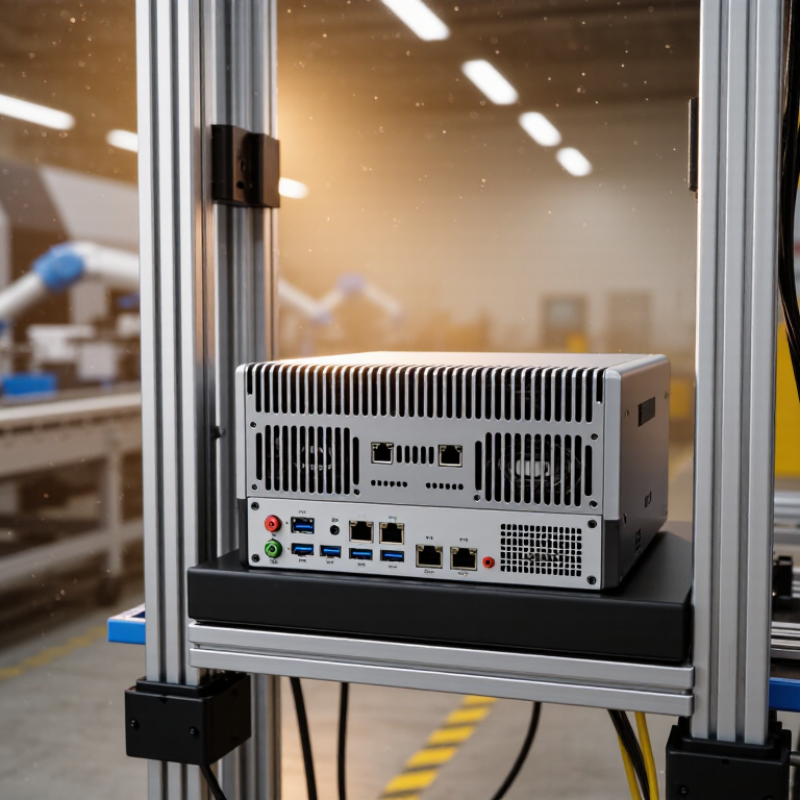
Identify the Application and Operating Environment
An industrial PC should be selected for the task it must perform, not just its processor speed. A machine-vision station may need multiple camera ports and fast storage. A control-room terminal may prioritize stable display outputs and long service life. List required software, I/O, response times, and expansion needs before comparing hardware. A 2024 Deloitte Smart Manufacturing Survey found that 86% of surveyed executives expected smart manufacturing to be a primary competitiveness driver within five years. That makes reliable computing infrastructure important, but it does not mean every workstation needs the same configuration.
Next, map the actual operating environment. Record ambient temperature, dust, moisture, vibration, available space, and power quality at the installation point. A cabinet beside a furnace faces different thermal stress than a clean office; a washdown area needs suitable enclosure protection. Check the equipment’s rated temperature range and ingress-protection level against site conditions, and confirm that cooling will still work inside the closed cabinet. A neat lab test can still mislead. Real sites are messy.
Tips: Photograph the mounting location and note nearby heat sources, cable routes, and cleaning routines. Leave practical room for airflow and maintenance. If conditions vary by season or shift, measure them over time rather than guessing.
Compare Industrial PC Form Factors and Mounting Options
An industrial PC’s form factor affects where it fits, how it cools, and how easily technicians can reach its connections. Compact embedded computers suit machines with limited cabinet space and stable operating conditions. Box PCs offer more ports and expansion options, but need a secure shelf or bracket. Rackmount systems fit centralized equipment rooms, where front access and cable routing matter. Small cabinets vary.
Mounting choice should match the machine, not just the available holes. DIN-rail mounting keeps a computer near control components, but vibration and cable strain need attention. Panel-mounted PCs place the display and computer at the operator station; check panel thickness and rear clearance before cutting. VESA mounting can simplify installation on a machine arm, though the arm must support the unit’s weight. Clearance matters.
Before choosing, measure the mounting area and note nearby heat sources, dust, and service access. A fanless design can reduce dust intake, yet it still needs room to shed heat. This trade-off is easy to underestimate. I would also check connector direction: cables exiting toward a wall can make routine replacement awkward. A little spare space around the enclosure often saves time later, even when the first layout looks crowded.
How to Choose the Right Industrial PC? Compare Industrial PC Form Factors and Mounting Options
Standard motherboard dimensions affect the space available inside an industrial PC chassis. The chart compares board area for three widely used form factors.
Mounting options: DIN-rail mounting suits compact control cabinets; panel mounting places the computer through a cabinet door or panel; wall mounting saves rack space; and rack mounting fits standardized equipment racks. Chassis compatibility depends on the specific industrial PC.
Board dimensions shown are nominal standards: Mini-ITX 170 × 170 mm, Micro-ATX up to 244 × 244 mm, and ATX 305 × 244 mm. Area is calculated from these dimensions.
Match Processing, Memory, and Storage to Workload Demands
Choosing an industrial PC starts with the work it must perform, not the largest specification available. A controller collecting a few sensor readings has different needs from a vision system inspecting fast-moving parts. Count active tasks, data streams, and response deadlines. Then select a processor that can handle sustained demand, not just brief benchmark peaks. A tidy specification sheet can still mislead. Heat, enclosure space, and nearby equipment may reduce real-world performance.
Memory should cover the operating system, applications, and temporary data with room for peak workloads. For example, image analysis may need far more memory than simple machine monitoring. Watch memory use during a realistic test; guessing from average use is risky. Storage deserves the same care. A system that records frequent sensor data needs storage rated for repeated writes, while image archives may need greater capacity. Check interface speed, retention needs, and replacement access. Small details matter.
In commissioning, workload changes often expose sizing mistakes that looked harmless on paper. Leave practical headroom, but avoid paying for capacity the application cannot use. That balance takes judgment. Record actual CPU, memory, and storage use during a representative production shift. If the data is incomplete, be cautious; one quiet test period may not reflect a busy line.
Check Connectivity, Expansion, and System Compatibility
How to Choose the Right Industrial PC?
Check Connectivity, Expansion, and System Compatibility
A suitable industrial PC should connect cleanly to the equipment already on your floor. Count the ports you need, including Ethernet, USB, serial, and any fieldbus connections. Check connector locations, too. A port on the wrong side can make cable routing awkward inside a cramped cabinet. Details matter. Confirm that network speed and serial settings match the devices and software in use, rather than relying on a port count alone.
Expansion needs can change after installation. Check available PCIe slots, storage bays, memory capacity, and support for the specific cards your application requires. Leave room for growth, but avoid paying for expansion you cannot use. Compatibility matters just as much: verify operating-system support, drivers, processor requirements, and connections to existing control software. If the PC must run continuously, also compare its operating temperature and power input with conditions at the installation site. Test it early. A spreadsheet may say everything fits, yet a real card, cable, or legacy driver can reveal a problem the checklist missed. That is worth admitting before procurement, not after deployment.
Evaluate Reliability, Support, and Total Cost of Ownership
When choosing an industrial PC, judge reliability in the conditions it will actually face. A unit beside a warm motor cabinet needs different thermal headroom from one in a clean control room. Check operating temperature, vibration tolerance, ingress protection, and expected service life against the installation. Ask how components are tested and whether storage or memory can be replaced without removing the whole system. Datasheets help, but they cannot predict every dusty corner or awkward mounting position.
Support matters most when a fault interrupts production. Confirm service hours, response targets, diagnostic options, and access to replacement parts. A clear escalation path can save time when a machine stops at 2 a.m. Keep a spare unit nearby if downtime is costly, but account for the shelf life of that spare. This is easy to overlook. Also ask how long firmware and security updates are maintained; a low purchase price may become less attractive if support ends early.
Compare total cost of ownership over the expected service period, not just the invoice. Include installation, power use, maintenance labor, replacement parts, and the cost of unplanned downtime. For example, a cheaper computer that needs frequent filter cleaning may consume more technician hours than expected. Estimates are imperfect, especially before a site has operating data. Build in a reasonable contingency, then revisit the calculation after the first months of use. A spreadsheet is useful, but real maintenance logs are better.